How to make AI photos look real
How to make AI photos look real: why they look fake, and the exact prompt change that fixes each tell, from plastic skin to impossible light.

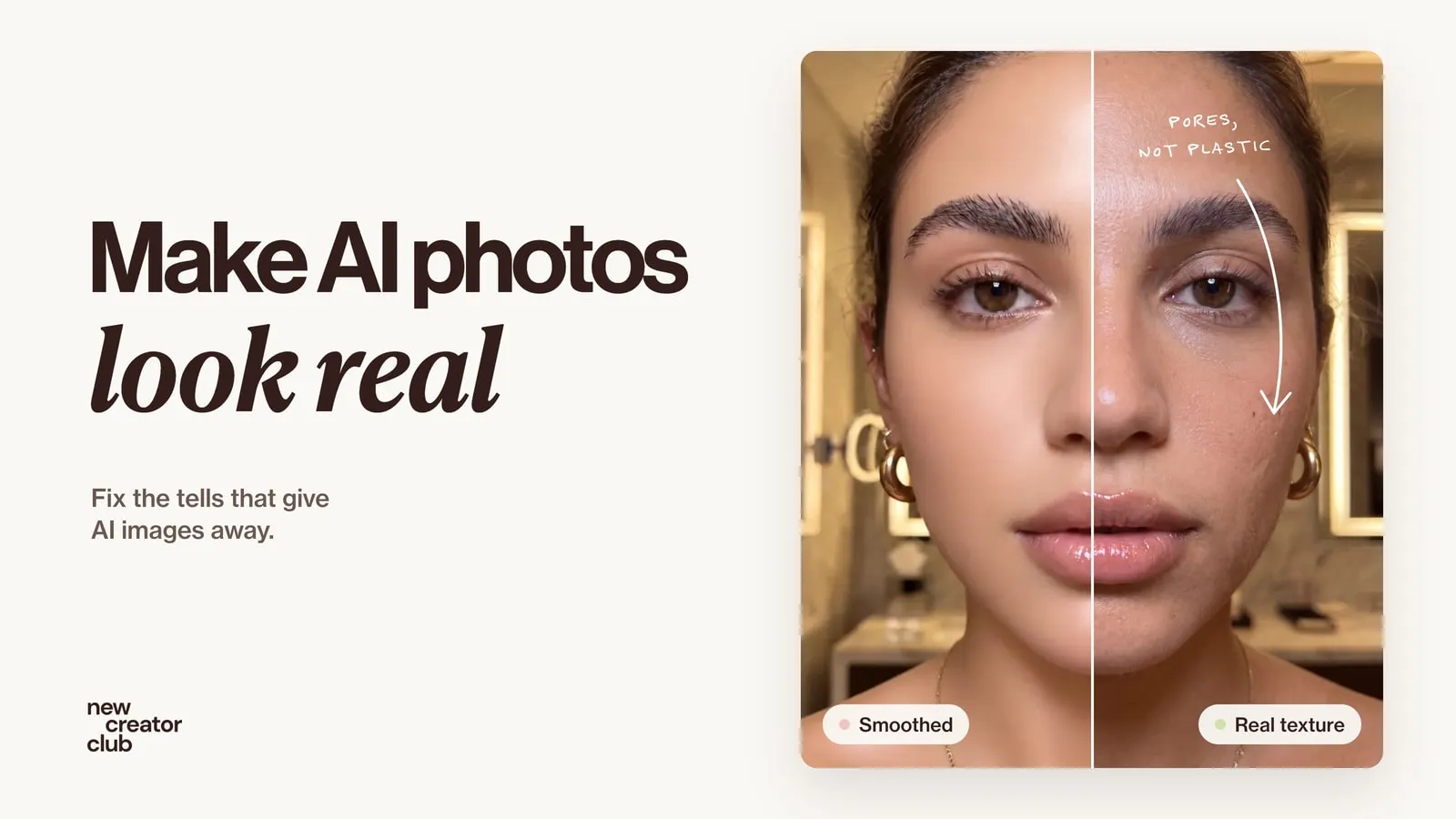
AI photos look fake when they are too perfect: smooth skin, centred symmetry, light with no source and a glossy finish no camera produces. To make them look real, describe a real photograph (one light source, a real lens and distance, real materials and ordinary flaws), then check the image for the usual tells and fix them one at a time.
Most AI images don't fail because the model is weak. They fail because nobody told it what kind of photograph to take, so it filled every gap with the most average, most polished choice it knows. This guide shows how to make AI photos look real by closing those gaps: first by building one image up step by step, then by fixing the nine tells that give an AI photo away.
Why do AI images look fake?
A common explanation is that image models drift towards an idealised average. Ask for "a woman drinking coffee" and you get the face, light and kitchen the model has seen most often, smoothed and centred. Three things make it worse:
- Gaps in the prompt. Anything you leave out, the model decides for you, and it decides "stock photo".
- Quality words. "Photorealistic, 8K, ultra detailed" pushes towards a sharp, glossy render, not a photograph. Resolution is a setting, not a word.
- Heavy finishing. Smoothing, extra sharpening and saturated colour are the opposite of what a real camera gives you.
The fix is to write prompts the way a photographer plans a shot. If you want the full formula, start with AI image prompts that look like real photos.
The realism ladder: one image, six steps
The most reliable way to make AI images look realistic is to change one thing at a time and look at what each change does. Below, one kitchen portrait prompt climbs from a bare first try to a finished brief, one step at a time. Try each step yourself and compare the results; the change at each step is in bold.
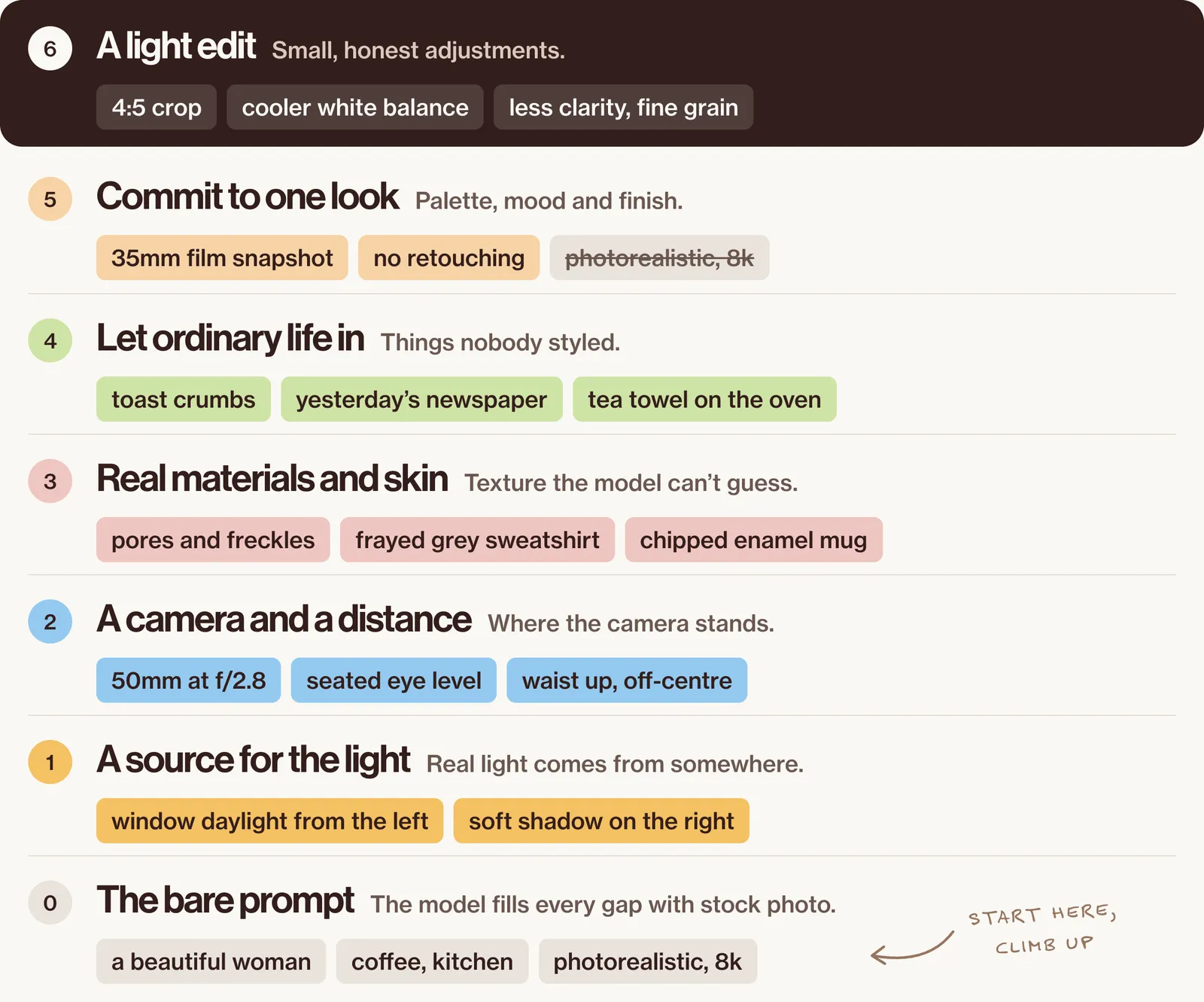
Step 0: the bare prompt. This is what most people start with.
A beautiful woman drinking coffee in a kitchen, photorealistic, 8k, ultra detailed.Step 1: give the light a source. Real light comes from somewhere.
Creative direction: an everyday morning moment for a home-goods brand's blog. Art direction: a woman sits at a kitchen table holding a mug in both hands, looking out of frame. Subject: a woman in her mid-thirties. Lighting: soft daylight from a window on her left, the right side of her face in gentle shadow.Step 2: choose a camera and a distance. Add: Photography: 50mm lens at f/2.8, from across the table at seated eye level, framed from the waist up, slightly off-centre.
Step 3: describe real materials and skin. Add: a woman in her mid-thirties with shoulder-length wavy brown hair, faint freckles, visible pores and fine lines around her eyes, a washed-grey cotton sweatshirt with a frayed cuff; the mug is chipped white enamel with a blue rim.
Step 4: let ordinary life in. Add: yesterday's newspaper and a few toast crumbs on the wooden table, a tea towel hanging off the oven door behind her.
Step 5: commit to one look. Add: Palette: muted greys, cream and soft blue. Mood: sleepy, content, unposed. Post-processing: shot like a 35mm film snapshot, natural colour, fine grain, no retouching. Then delete "photorealistic, 8k, ultra detailed".
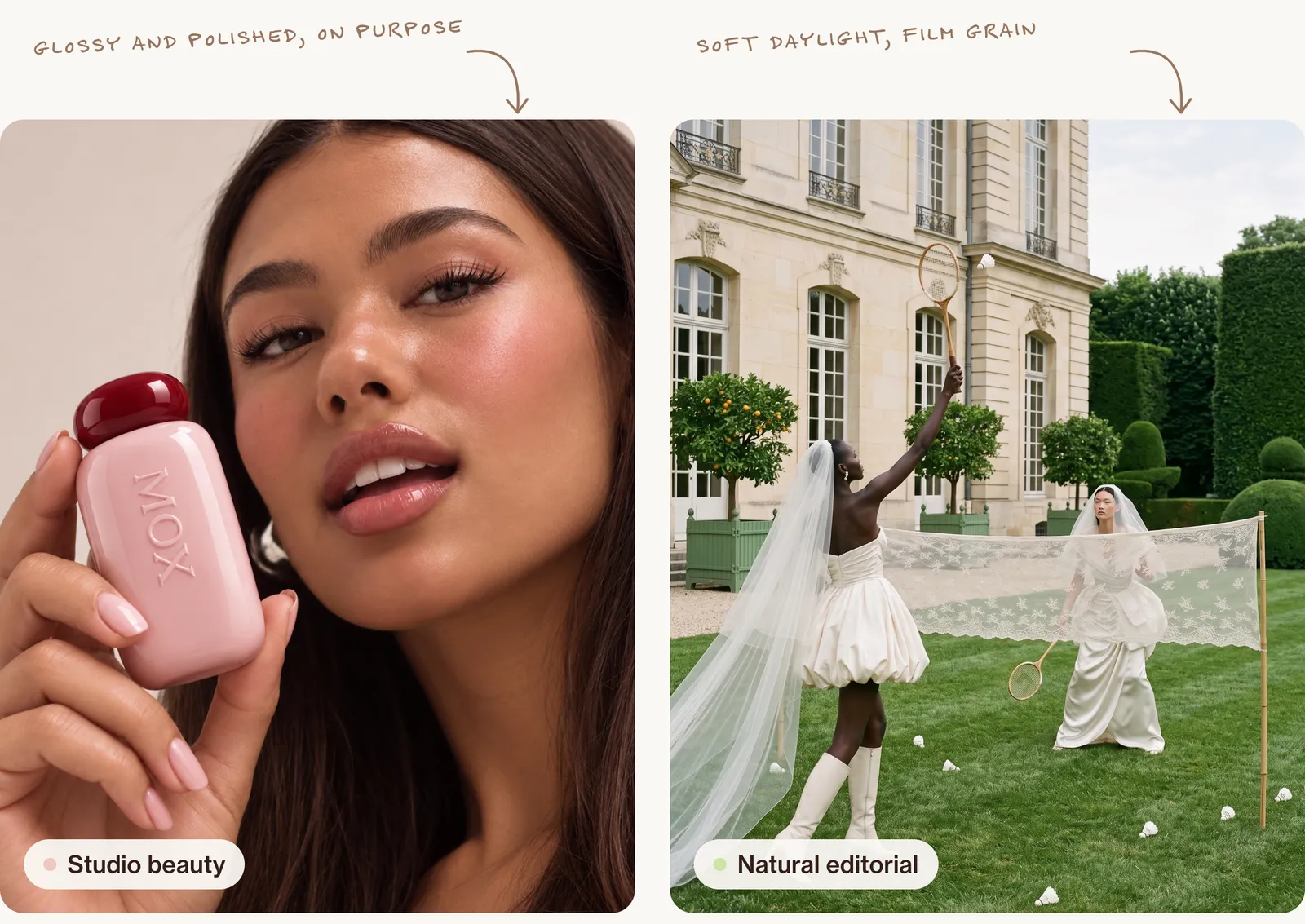
Committing to a look doesn't mean making it look amateur. A glossy beauty shot and a soft daylight editorial both read as photographs, because each one picked its light and finish and stuck to them.
Step 6: a light edit. Crop to 4:5, cool the white balance slightly, lower clarity a touch and add fine grain. Small, honest adjustments, the kind a photographer would make.
The 9 tells and how to fix each
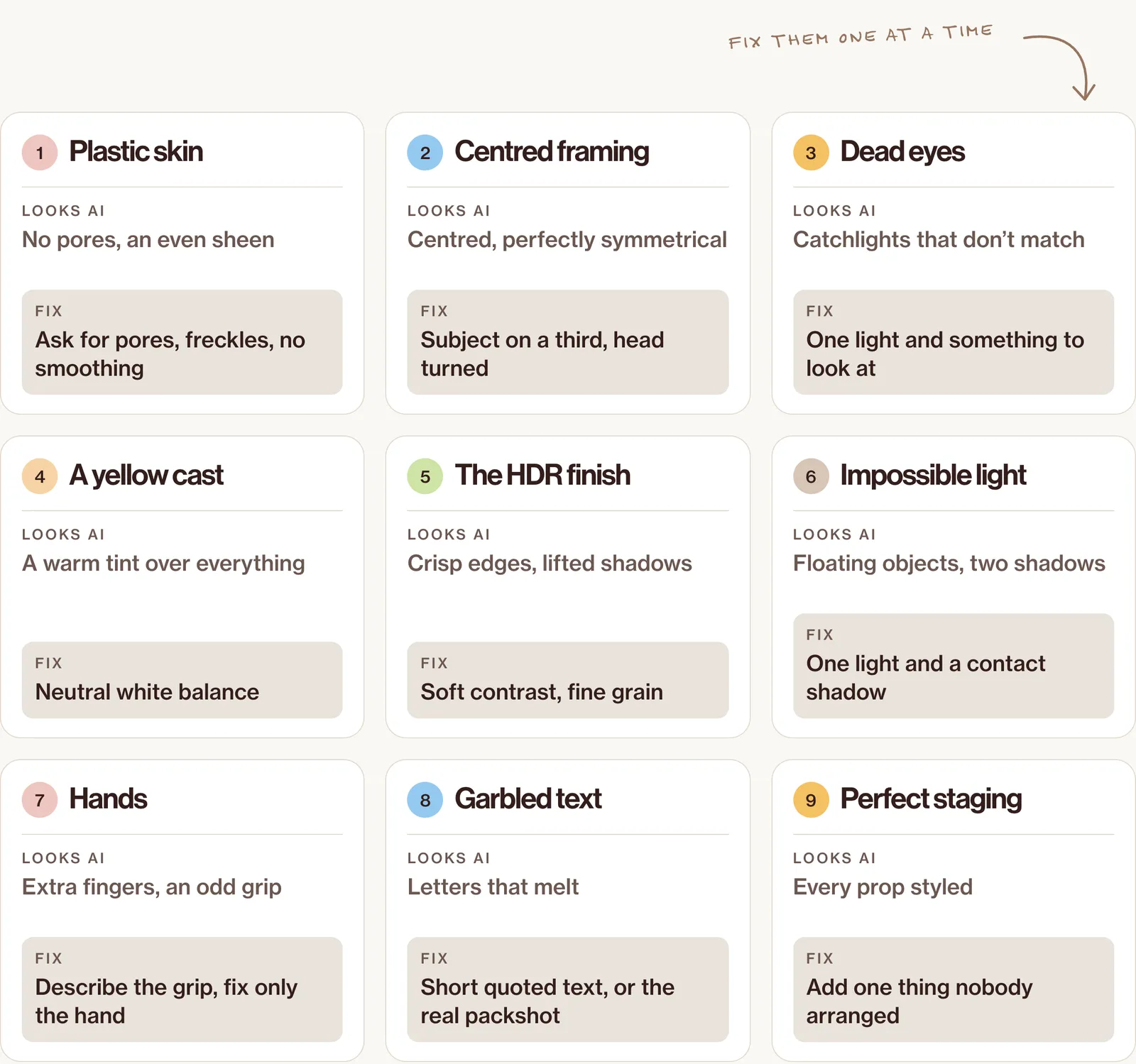
Once the image is close, check it for these. Fix them one at a time, in the prompt first and in an edit if the rest of the picture is already right.
Plastic, poreless skin
Skin with no pores, no fine lines and an even sheen everywhere. It comes from smoothing, from beauty-heavy defaults and from upscalers that erase texture. In the prompt, describe the skin you want: age, pores, freckles, a little shine on the nose, and "no skin smoothing". When you upscale, keep texture settings low. There is a full guide to fixing plastic skin in AI portraits.
Subject: a man in his fifties with sun-weathered skin, visible pores across his nose, a small scar through one eyebrow and two days of grey stubble. Post-processing: no skin smoothing, natural texture kept.Perfect symmetry and dead-centre framing
A face looking straight down the lens, perfectly centred, both sides identical. Real photos are rarely that tidy. Place the subject on a third, turn the head slightly and let something in the room cut into the frame.
Dead eyes
Eyes that look at nothing, or catchlights that don't match the light in the scene. Name one light source so the reflection sits in the same spot in both eyes, and give the person something to look at.
A yellow or orange cast
Some models and versions have shown a warm, yellowish tint by default. Ask for the light you want ("cool overcast daylight", "neutral white balance, whites stay white"), and if it is still warm, correct the white balance in an edit by sampling something that should be neutral.
Over-sharp, over-smooth, "HDR" finish
Every edge crisp, every shadow lifted, colour turned up. Real photographs let shadows go dark and keep contrast soft. Ask for "soft natural contrast, no added sharpening, fine grain" instead of quality words.
Impossible light and missing shadows
Objects that float, or shadows falling two ways at once. Describe one light and where its shadow goes, including the darker contact shadow where an object touches the surface.
Hands, fingers and contact points
Hands are much better on current models, but still worth checking: count the fingers, look at how they hold the object. Describe the grip in the prompt, and if one hand is wrong, fix just that area rather than regenerating the whole picture.
Garbled text, labels and logos
Letters that melt or spell nothing. Keep text short and quote it exactly, and keep other text out of frame. For a real brand, start from the real packshot instead of asking the model to draw the label. There is a full walkthrough in AI product photography.
Too-perfect staging
Every prop styled, every surface clean, golden hour by default. Add one or two ordinary things that nobody arranged: a charger cable, a half-finished glass of water, a sticky note.
How to make AI images look less AI in an edit
When 80% of the picture is right, editing beats regenerating. In any editor:
- Crop off-centre, to a common photo ratio such as 4:5 or 3:2.
- Correct the white balance on something that should be neutral.
- Reduce clarity and sharpening slightly.
- Add fine grain over the whole image.
- Fix only the broken area (a hand, a label) instead of starting again.
Realism for products, people and phone-style UGC
- Products. Start from a real reference photo of the product so the shape, label and colour stay true.
- People. Be specific about age, features and texture. Never make realistic images of a real person without their consent.
- Phone-style UGC. Describe a phone camera, direct flash and an ordinary room. Polish is the tell here.
A 30-second realism checklist
- Is there one clear light source, and do the shadows agree with it?
- Does the skin have texture?
- Is the framing slightly imperfect?
- Do the eyes look at something?
- Are whites actually white?
- Is the finish soft rather than glossy?
- Do the hands hold things the way hands do?
- Is any text short and correct?
- Is there something in the frame nobody styled?
Real-looking, not deceptive
The goal is craft, not passing a fake off as evidence. Label AI-generated people in ads where platforms require it, never remove watermarks or provenance data such as content credentials, and don't make realistic images of real people without their consent.
FAQ
Do "4K" or "8K" in a prompt make an image sharper?
No. Resolution is a setting in the tool, not a word in the prompt. Quality words mostly push the image towards a glossy, rendered look.
Why do AI images all look the same?
Because the model fills every gap you leave with its most typical choice. The more of the photograph you decide (light, lens, distance, materials, mood), the less it looks like everyone else's.
How do I make realistic AI photos of myself?
Use a tool that supports a face reference, use your own photos only, and describe the light and camera as carefully as you would for anyone else.
Go further
Spotting the tells is step one. Inside New Creator Club you learn to make photos, ads and video that don't look like AI, with the leading AI tools, step by step. Start creating.
Keep reading
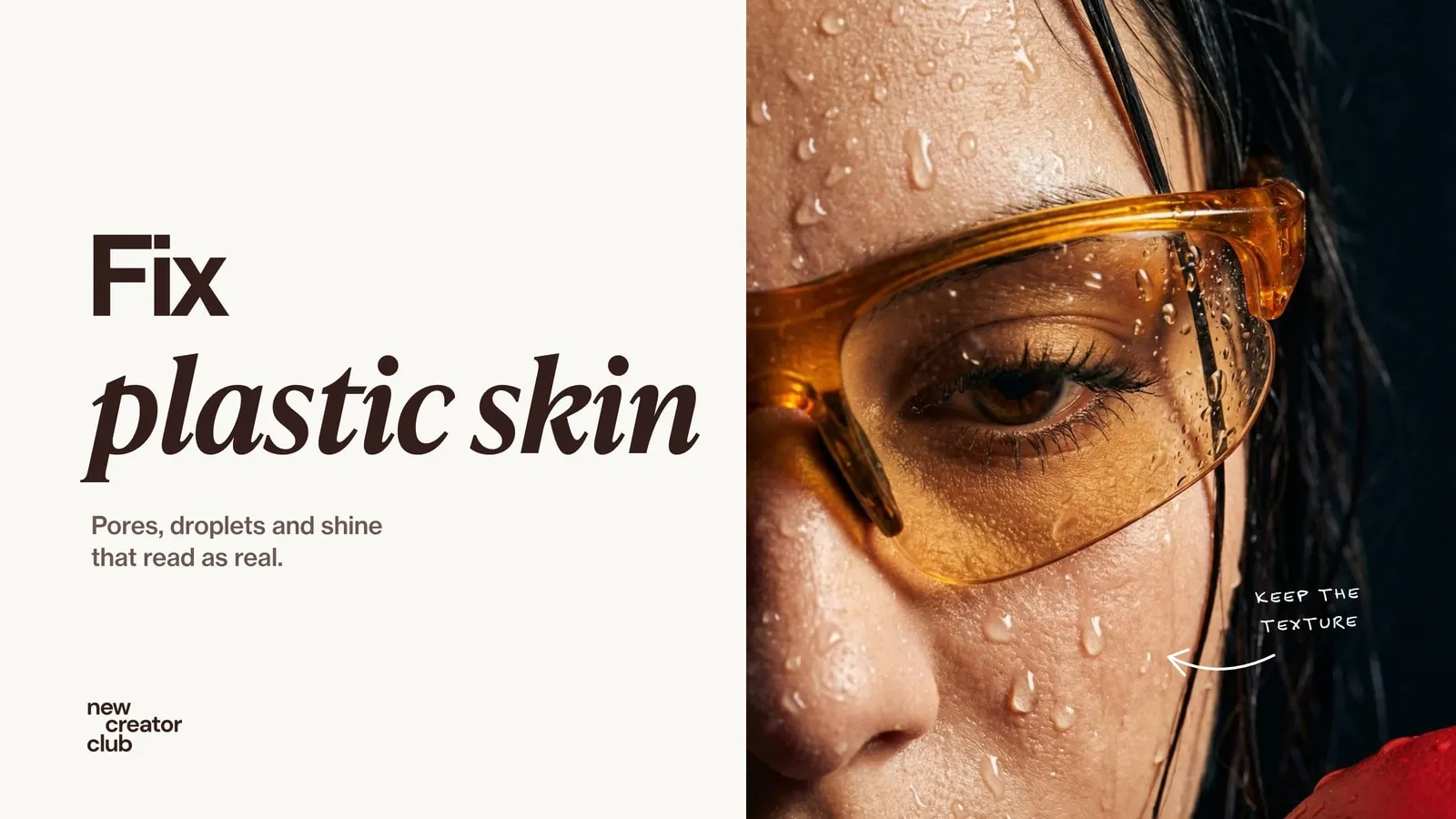
How to fix plastic skin in AI portraits
Realistic skin texture prompts that fix plastic AI skin, plus the light, editing and upscaler settings that keep pores, with close-ups to check against.
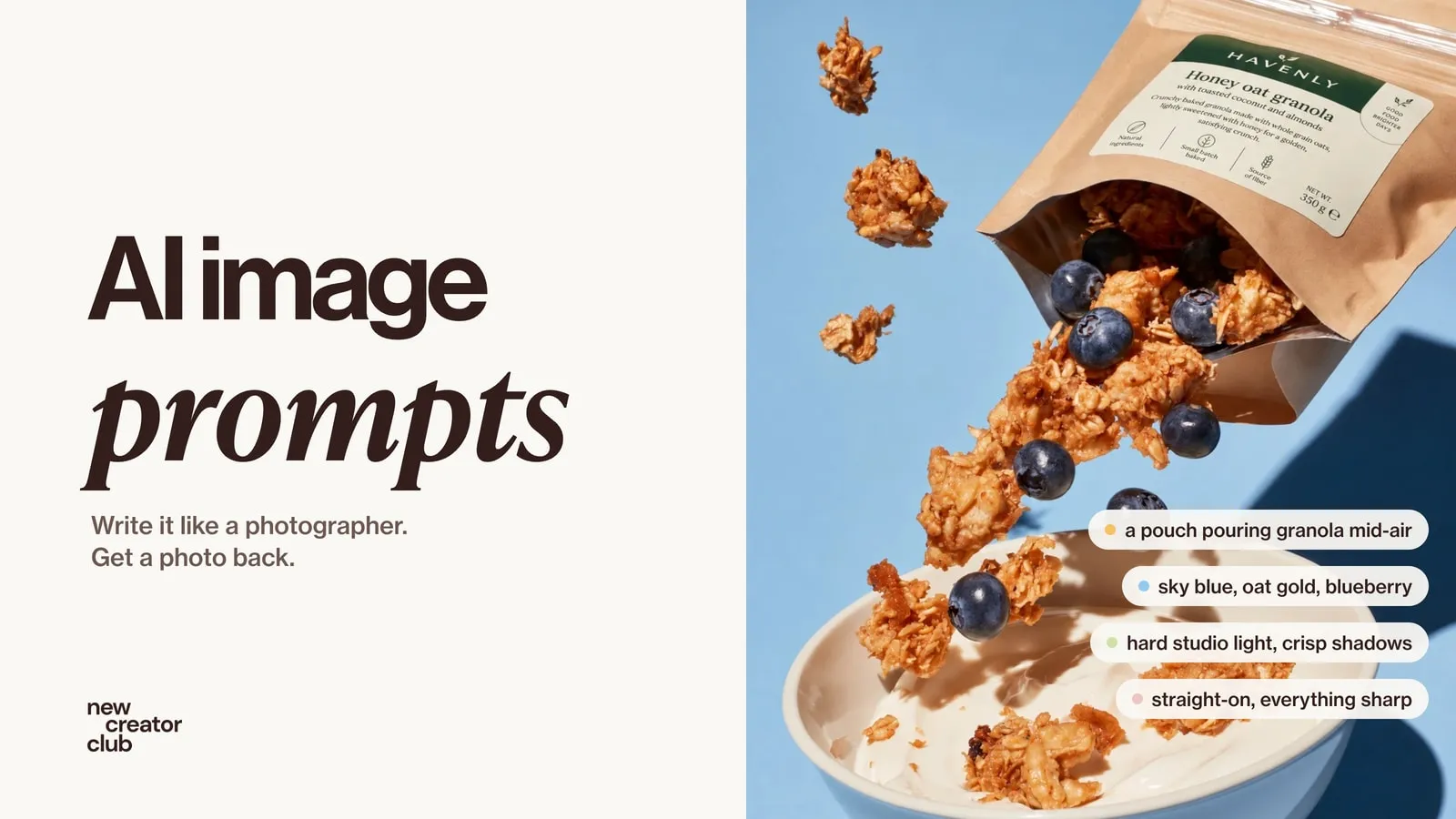
AI image prompts that look like real photos
Write AI image prompts that read like real photographs: an eight-part formula, with original prompts for portraits, products, UGC and editorial.
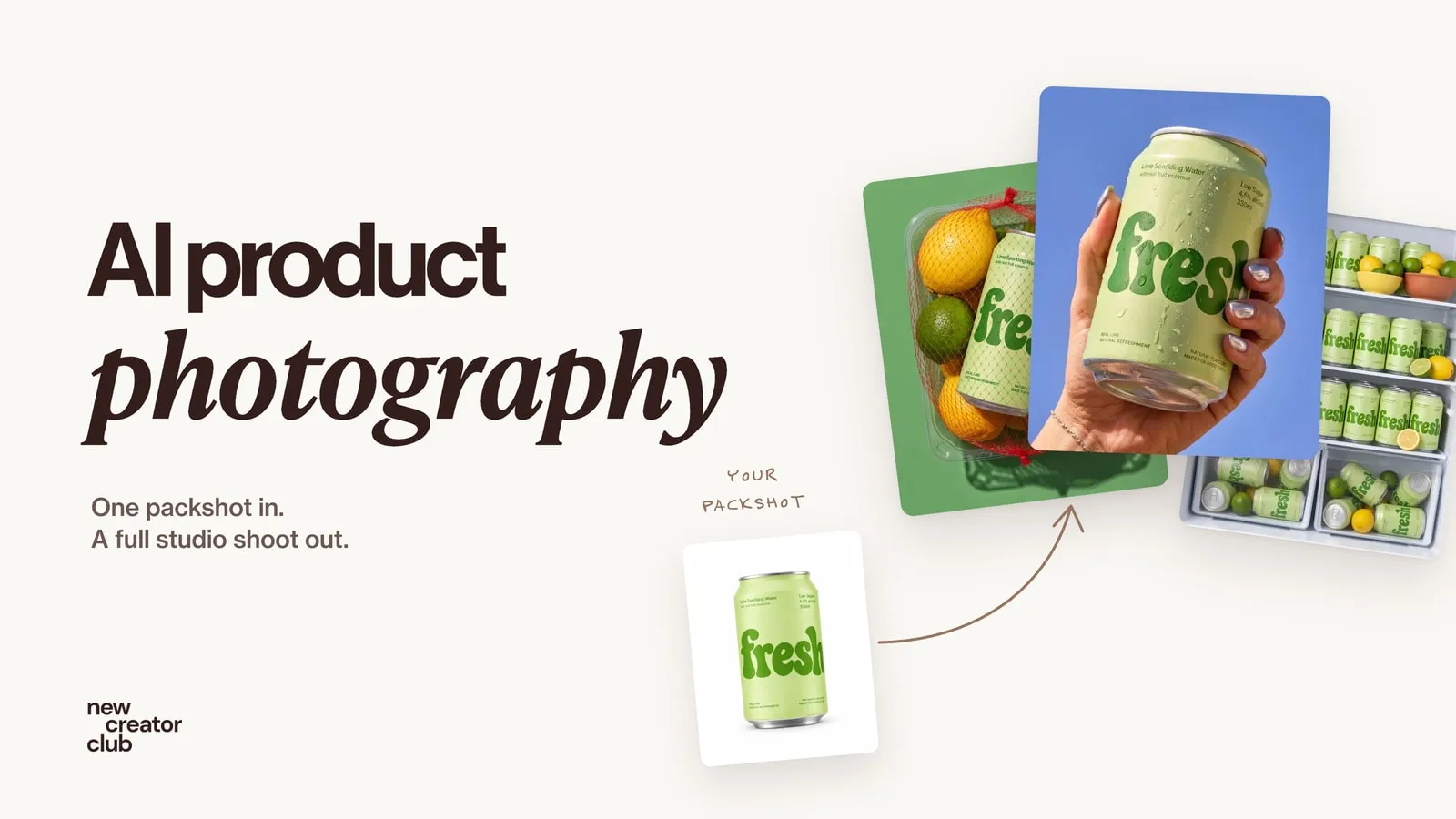
AI product photography: one packshot, a full studio shoot
AI product photography from one packshot: a full studio shoot that keeps the label and colours true, with a worked example, the prompts and the checks.