How to fix plastic skin in AI portraits
Realistic skin texture prompts that fix plastic AI skin, plus the light, editing and upscaler settings that keep pores, with close-ups to check against.

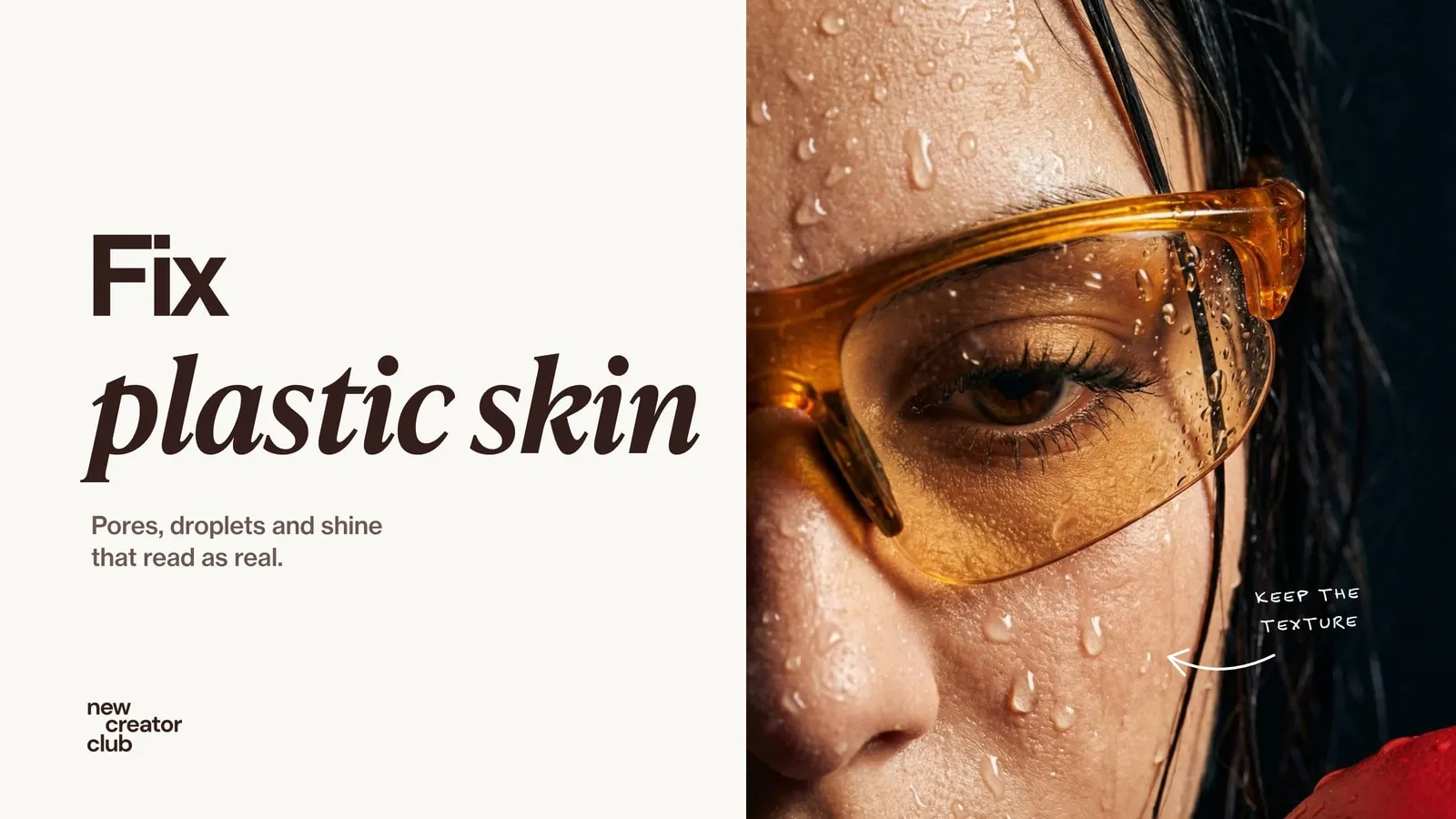
AI skin looks plastic when the model falls back on its default retouched look: no pores, one even tone, glossy highlights and flat light. Fix it in three places: ask for real skin and real light in the prompt, drop the words that mean retouched, and if the image is already made, add texture back with a gentle edit or a low-creativity upscale, then check it at 100% zoom.
Plastic skin is the most common reason a good AI portrait still reads as AI. The face can be well lit and well framed, and one look at the cheek gives it away. This guide covers why it happens and how to fix it at each stage: with a realistic skin texture prompt, in an edit and when you upscale. It is part of our wider guide to making AI photos look real.
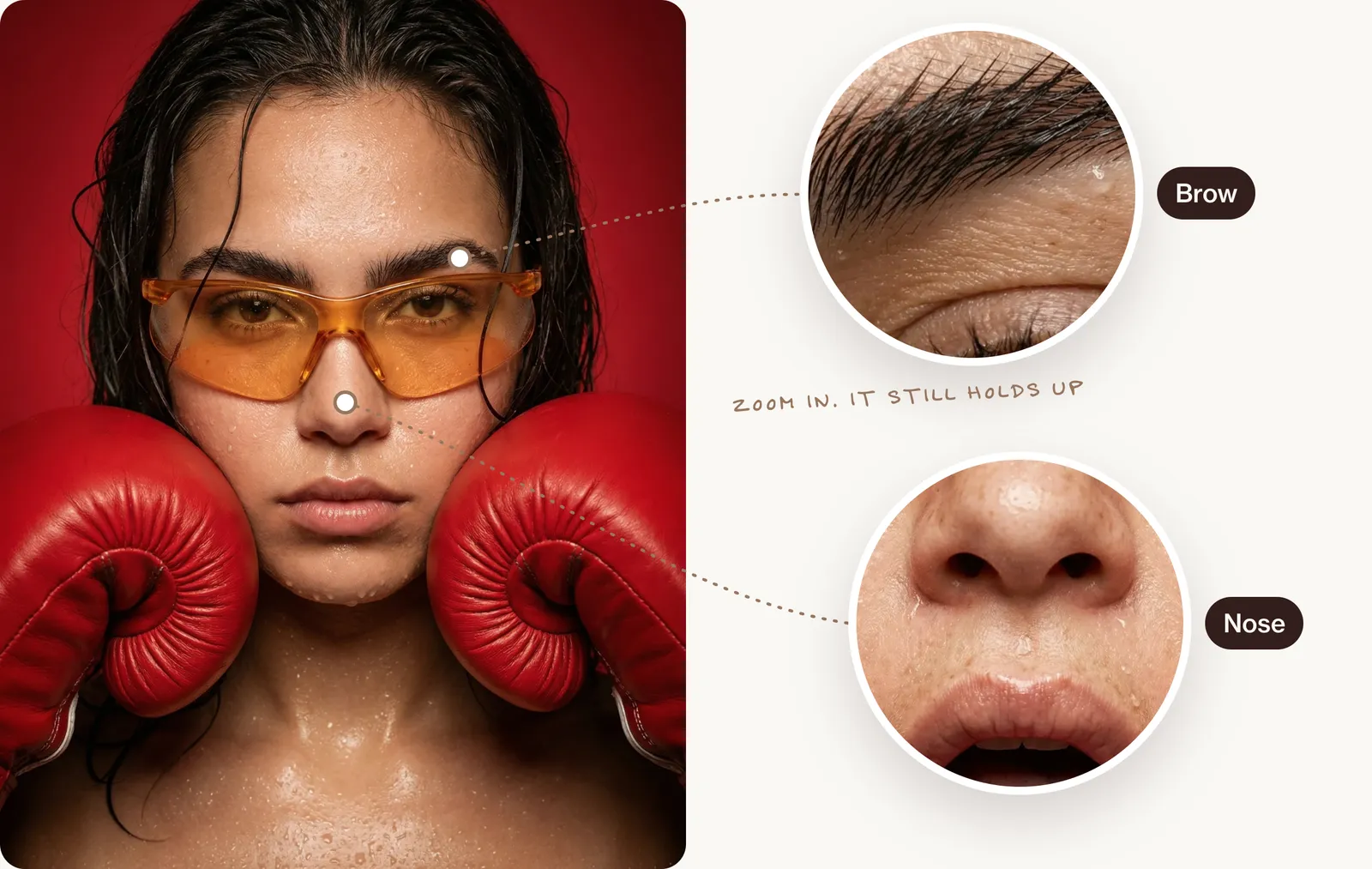
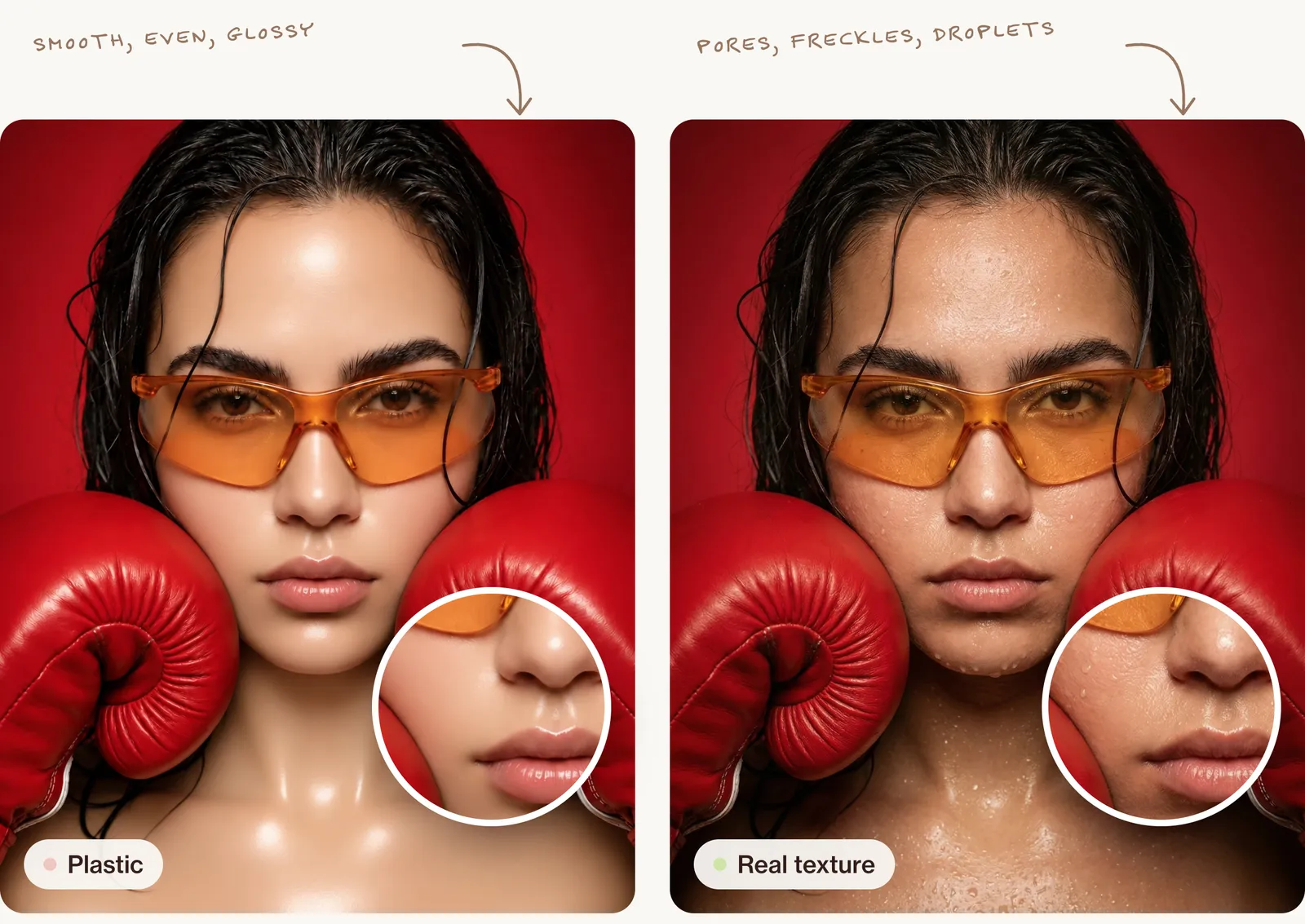
This is the goal: skin that still holds up when you zoom in. The rest of this guide shows how to get there, using this set as the example.
Why does AI skin look plastic?
There is rarely one cause. Usually two or three of these stack up:
- Retouched examples. Much of the photography image models learn from is retouched advertising and stock, so the "default" face is a retouched face.
- Beauty words in the prompt. "Flawless", "perfect skin" and "glowing" ask for exactly the look you are trying to avoid.
- Flat, frontal light. Light from straight in front fills every pore with light, so texture has nowhere to show.
- Too far away. In a full-length shot, pores are smaller than a pixel. They can't appear, however you ask.
- Upscalers and face restore. Many upscalers smooth faces on the way up, and "face restore" options do it on purpose.
- Repeated edits. Each pass through an editor can soften detail a little more.
| Cause | What you see | Fix |
|---|---|---|
| Retouched default | Even, poreless skin on every face | Describe the skin you want in detail |
| Beauty words | A soft glow, airbrushed cheeks | Remove them; say "unretouched" |
| Flat light | Texture vanishes, the face looks pasted on | One light from the side |
| Distance | Smooth skin in wide shots | Frame head and shoulders for texture |
| Upscaler | Detail melts when you enlarge | Low creativity, face restore off |
| Repeated edits | Gradual blur | Go back to an earlier version |
Fix it in the prompt
Words that help and words that hurt
Describe skin the way a photographer would notice it. Be specific about where texture sits: pores are larger on the nose and finer on the cheeks, fine lines gather at the eyes, tone is rarely one colour.
| Use | Avoid |
|---|---|
| visible pores, fine lines, freckles | flawless, perfect skin |
| slight redness, uneven tone | porcelain, airbrushed |
| peach fuzz, small hairs along the jaw | glowing skin, beauty retouch |
| unretouched, true-to-life colour | smooth, ultra detailed 8K |
Image models respond better to what you want than to what you don't, so lead with the "use" words rather than a long list of "no".
Light does half the work
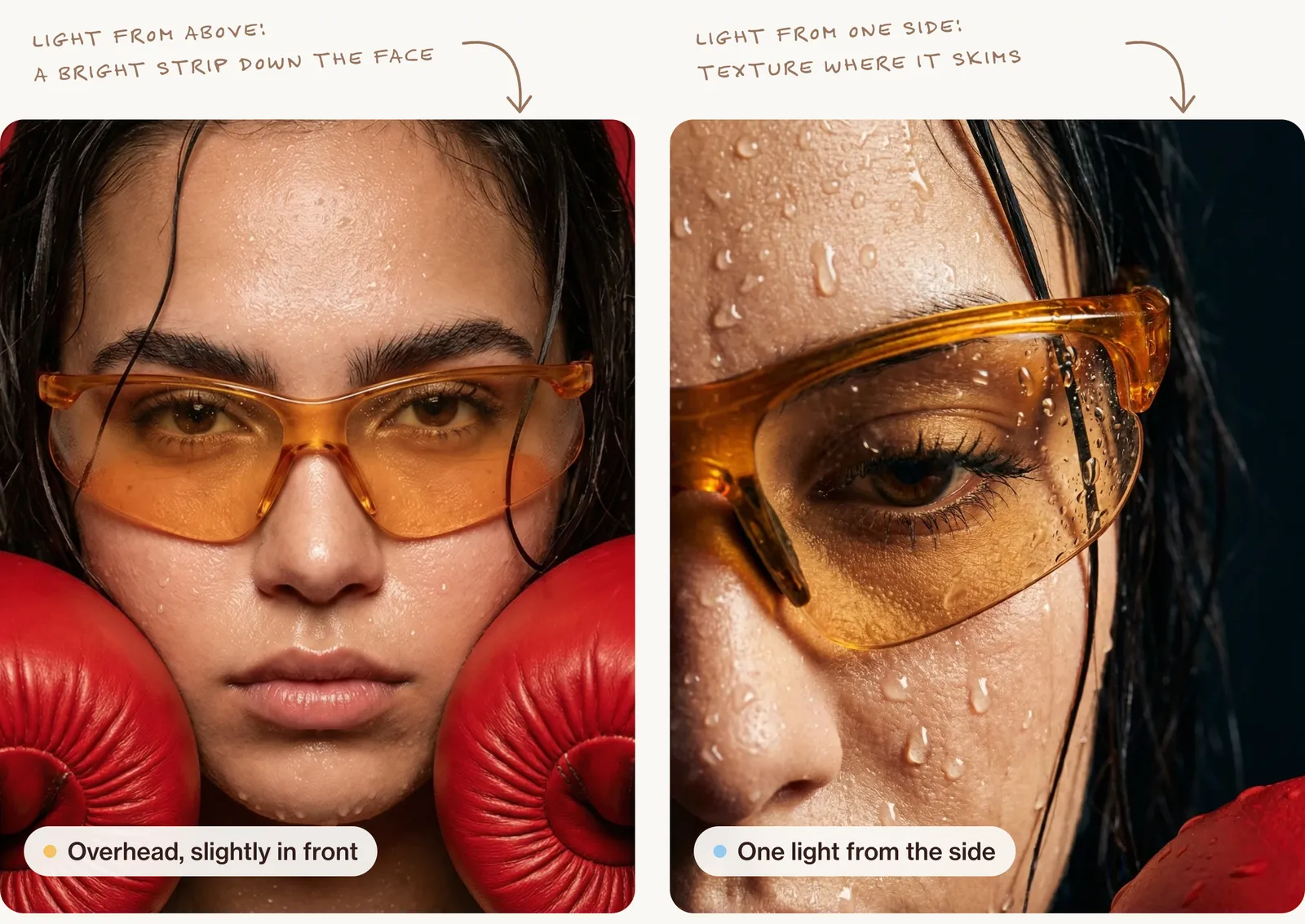
Texture is shadow. Pores and fine lines only show when light skims across the skin and leaves tiny shadows behind each one. Side light from a window at around 45 degrees does this; a ring light or a flash straight on removes it. If you want texture, name one light and where it comes from, and leave out "fill light".
Camera distance and lens
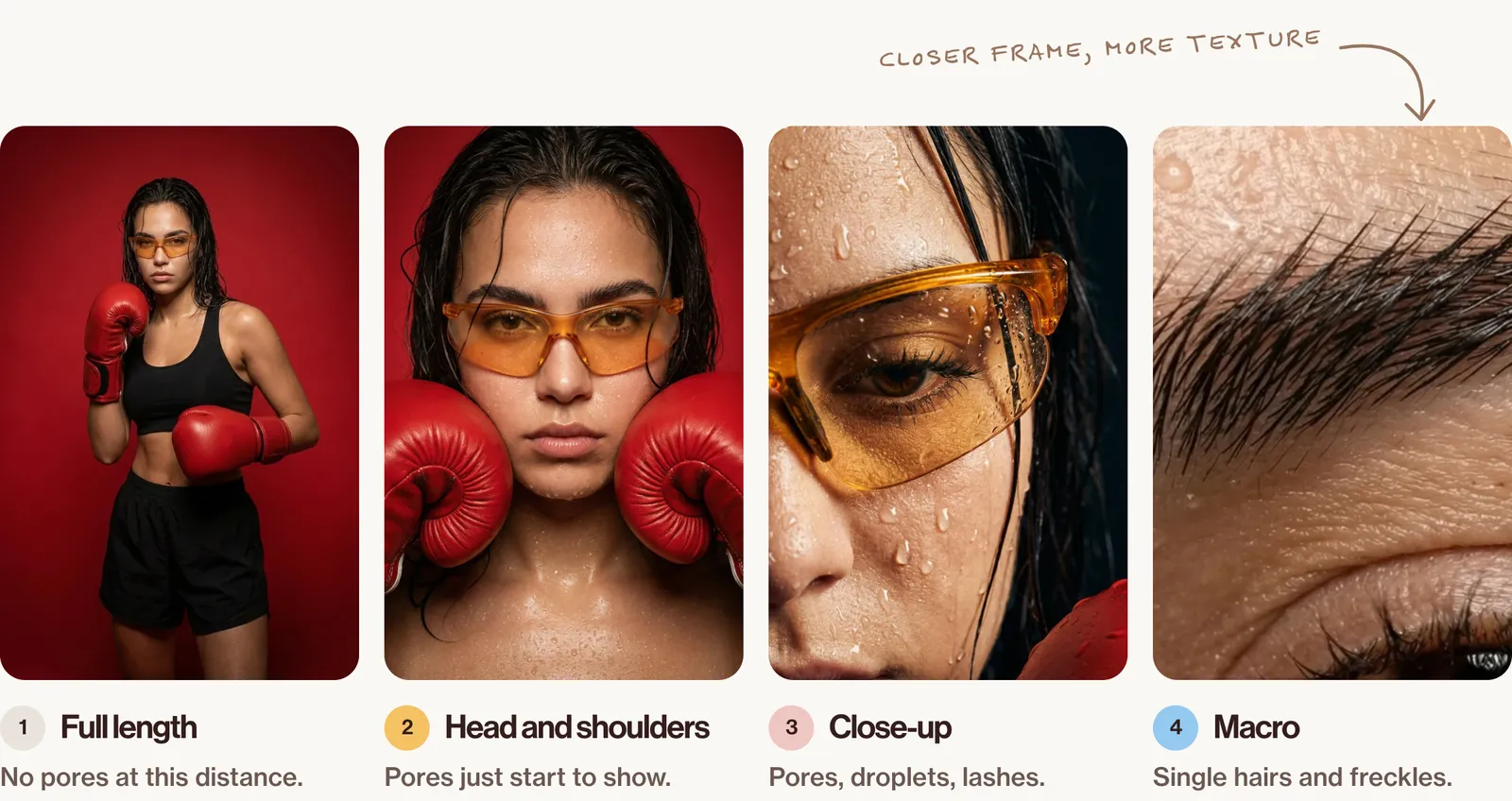
Pores exist only when the face is big enough in the frame. A head-and-shoulders portrait with an 85mm look can show them; a full-length fashion shot can't, and asking for "visible pores" there tends to produce a gritty, unreal surface instead. Match your skin words to the framing.
A complete realistic skin texture prompt
This prompt follows the same eight decisions as every prompt in this blog. For a person, the "material" line describes the skin.
Creative direction: a real-looking portrait where the skin reads as photographed, not retouched. Art direction: a man in his late thirties with light olive skin, a short beard and slightly tired eyes, head and shoulders, looking towards the camera, in a plain grey T-shirt against a painted wall. Skin: natural texture with visible pores, larger on the nose and finer on the cheeks, a few fine lines at the eyes, slight redness around the nostrils, uneven tone, small hairs along the jaw where the beard thins. Palette: warm grey wall, soft olive skin, charcoal T-shirt. Lighting: soft window light from the left at about 45 degrees, no fill, so texture shows on the lit side and the far cheek falls into gentle shadow. Photography: 85mm look at f/4, eye level, about one metre away, vertical 4:5, sharp focus on the eyes and skin. Mood: calm, honest, unposed. Post-processing: unretouched, true-to-life colour, fine film-like grain, no smoothing, no beauty filter, no glow.For close-up beauty or editorial work, go tighter and let low light rake across the skin:
Creative direction: a tight beauty-editorial close-up that celebrates real skin. Art direction: the lower half of a woman's face in profile, from the ear to the lips, a small gold earring, a few strands of hair across the cheek. Skin: freckles, visible pores, fine peach fuzz catching the light, slightly dry lips with natural lines. Palette: warm beige, soft gold, a hint of rose. Lighting: low raking sunlight from behind and to the side so the fine hairs glow and the texture shows. Photography: 100mm macro look at f/5.6, very close, 4:5. Mood: quiet, tactile. Post-processing: natural colour, light grain, no retouching.How this set was made
The portrait at the top came from this prompt:
Extreme close-up portrait of a young woman, early-to-mid 20s, light brown skin, strong bone structure, full lips, thick dark eyebrows. Wet damp dark brown hair slicked back and clinging to her face and neck with loose strands falling across her forehead. Skin completely covered in large and small water droplets glistening under studio lighting — droplets visible on forehead, cheeks, nose, lips, chest and collarbone. Wearing translucent amber-orange wraparound sports safety glasses with a thin nose bridge, lenses slightly fogged at edges. Both hands raised holding oversized red leather boxing gloves pressed against either side of her face symmetrically — knuckles facing outward, gloves level with her chin and cheeks, framing the lower half of her face. Expression completely neutral, intense, unflinching direct eye contact with camera. Shot on a seamless vivid saturated crimson-red background with no texture, no gradient, flat colour. Soft vignette at edges. Single overhead key light slightly front-facing creating a bright highlight strip down the centre of the face — nose, forehead, chin — with soft shadow fall-off on sides. No harsh shadows. Skin looks wet and luminous. Editorial fashion photography meets sports campaign. Shot on Phase One medium format camera. Ultra-sharp, hyper-realistic, every pore and water droplet in crisp detail. Vertical 4:5 portrait format. Colour palette is red, amber, warm brown and white only.Each close-up was then made with the portrait attached as a reference, so the face, glasses and gloves stay the same while the camera moves in. The side-lit eye close-up used this prompt:
Extreme macro close-up portrait, cropped to show only the right side of the face — one eye centred in the upper half of the frame, partial nose visible at bottom left, chin cut off. Young woman, light brown skin covered in dense water droplets of varying sizes — some large beads sitting on the skin surface, some streaking downward. Amber-orange translucent wraparound sports glasses sitting across the eye, the thick chunky frame curving from upper left to lower right diagonally across the frame — lens catching light and showing slight reflective glare. One brown eye visible through the lens, heavy dark lashes, intense downward or slightly sideways gaze — not looking directly into camera. Wet dark hair, individual strands curling and clinging to the temple and cheekbone, one or two strands cutting across the lens of the glasses. Skin texture hyper-detailed — pores, fine texture, water droplet shadows all razor sharp. Edge of a red boxing glove or red fabric just barely entering the bottom right corner of the frame. Background neutral dark — deep shadow, near black, out of focus. Lighting is dramatic and directional — single side light hitting the cheekbone and glasses from the left, creating a strong specular highlight on the glass lens and wet skin. Cinematic, intimate, voyeuristic crop. Medium format macro lens, ultra-sharp. 4:5 vertical crop. Colour palette: amber orange, warm skin tone, deep shadow, hint of red.Notice what these prompts spend their words on: the light and where it falls, how close the camera is, and the surface of the skin itself, down to the droplets. That is where realistic texture comes from.
How to fix plastic skin in an image you already made
If the rest of the picture is right, don't regenerate. Edit the skin only. This instruction works in most models that edit images, including ChatGPT and Nano Banana:
Edit this photo. Keep the same person, face shape, expression, hair, clothes, pose and lighting exactly as they are. Only change the skin: add natural texture with visible pores (larger on the nose, finer on the cheeks), fine lines where they would naturally be, slight uneven tone and a little redness around the nose. Remove any glossy or waxy shine, but keep the natural highlights from the existing light. No smoothing, no beauty filter, no change to the background.A few things make this work better:
- Select only the skin if your tool lets you mark an area. The less it is allowed to touch, the less the face drifts.
- Compare the face before and after. Edits can quietly change the eyes or jaw. If the person no longer looks like themselves, go back a step.
- Work from the best version, not the latest. If an edit makes things worse, return to the earlier image rather than editing the edit.
There is also a manual route. In Photoshop or the free Photopea, frequency separation lets you work on texture and colour separately, and a subtle texture layer at low opacity can add back pores. It takes practice, so try the edit prompt first.
Fix it when you upscale
Upscalers come in two kinds. Faithful upscalers enlarge what is there and add little; they keep plastic skin plastic. Creative upscalers invent new detail; at a low setting they can add believable texture, at a high setting they cover the face in a sandpaper texture that is just as fake.
For portraits, a good starting point is 2x, a low creativity or "detail" setting, and face restore switched off. And remember that writing "4K" or "8K" in a prompt doesn't create resolution; that is a setting in the tool.
The 100% zoom test
Always judge skin at full size, never as a thumbnail.
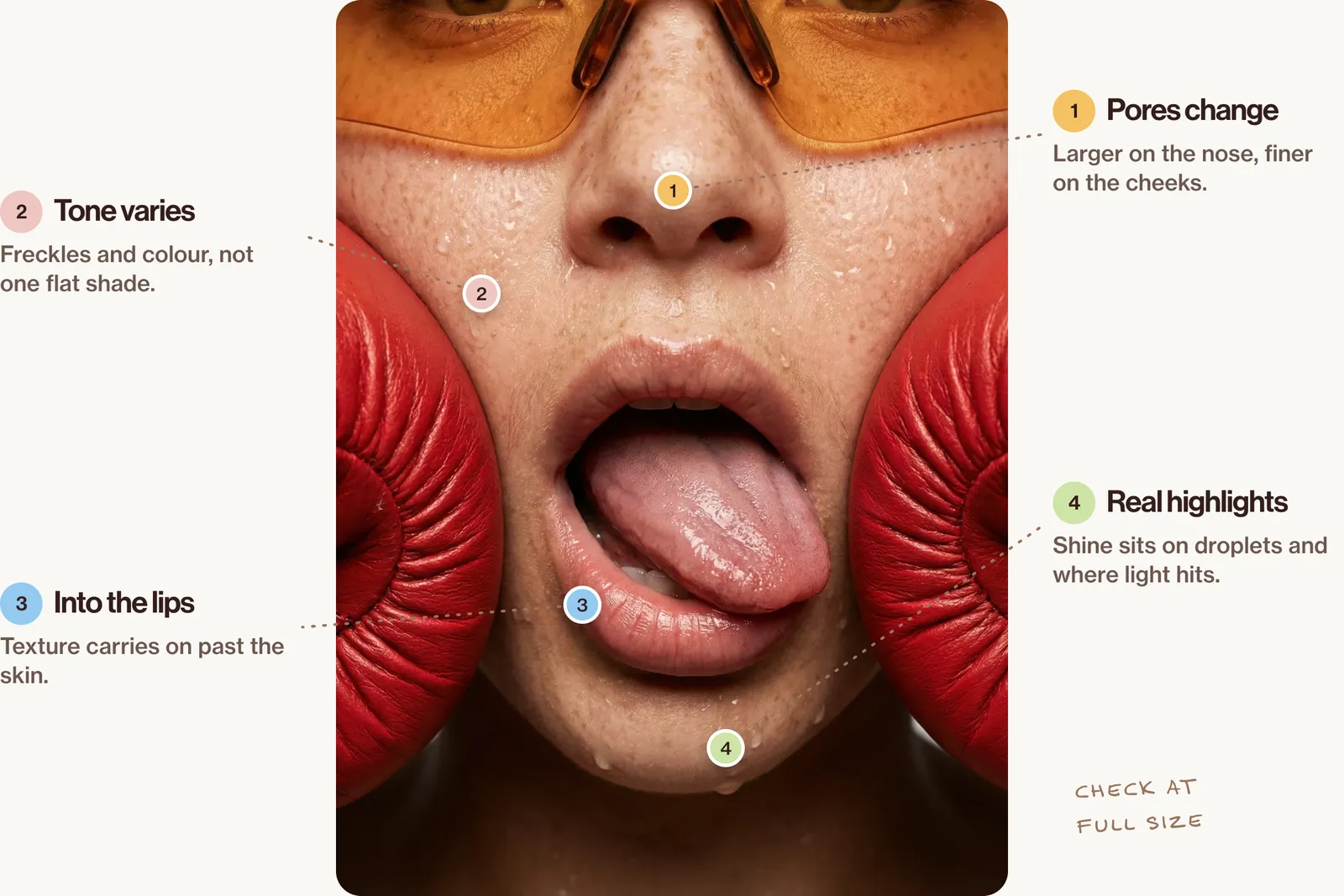
Check five things:
- Pores change across the face: larger on the nose, finer on the cheeks and forehead.
- Colour varies: a little redness, a shadow under the eyes, not one flat tone.
- Highlights sit where the light hits, not as a gloss over everything.
- Texture carries on into the hairline, eyebrows and lips.
- Nothing looks like sandpaper. Too much texture is also a tell.
Real texture looks different on every face. On darker skin it shows as much through highlights and changes in tone as through pores; on older skin through lines and creases. Check that your fixes don't flatten those differences.
When smooth skin is the right choice
Smooth isn't wrong. Beauty campaigns and some editorial looks are retouched on purpose, and that can be the right call. The goal is skin you chose, not skin the model chose for you.
One exception matters: if you advertise skincare or cosmetics, don't use AI skin to show what the product does. In the UK, the ASA has said that AI imagery exaggerating a product's effect is likely to mislead, and a disclaimer won't fix it.
FAQ
Why does AI skin look fake?
Because the model defaults to a retouched look, and flat light, distance and upscaling often make it worse. Describe real skin, use side light, frame closer and keep upscaling gentle.
Can I add skin texture without changing the face?
Usually, if you edit only the skin, say exactly what must stay the same, and compare the face before and after. If identity drifts, go back to the earlier version and try a smaller change.
Does upscaling fix plastic skin?
Only a creative upscaler at a low setting can help, and only a little. A faithful upscaler keeps the skin as it is, and a high creative setting over-textures it.
Is there a free fix?
Yes. The edit instruction above works in free tiers of several image tools, and Photopea is free for manual texture work. Limits on free plans change, so check the tool you use.
Go further
Real-looking skin is what separates the AI content people trust from the content they scroll past. Inside New Creator Club you learn to make images, ads and video that don't look like AI, for yourself, your clients or your brand. Start creating.
Keep reading
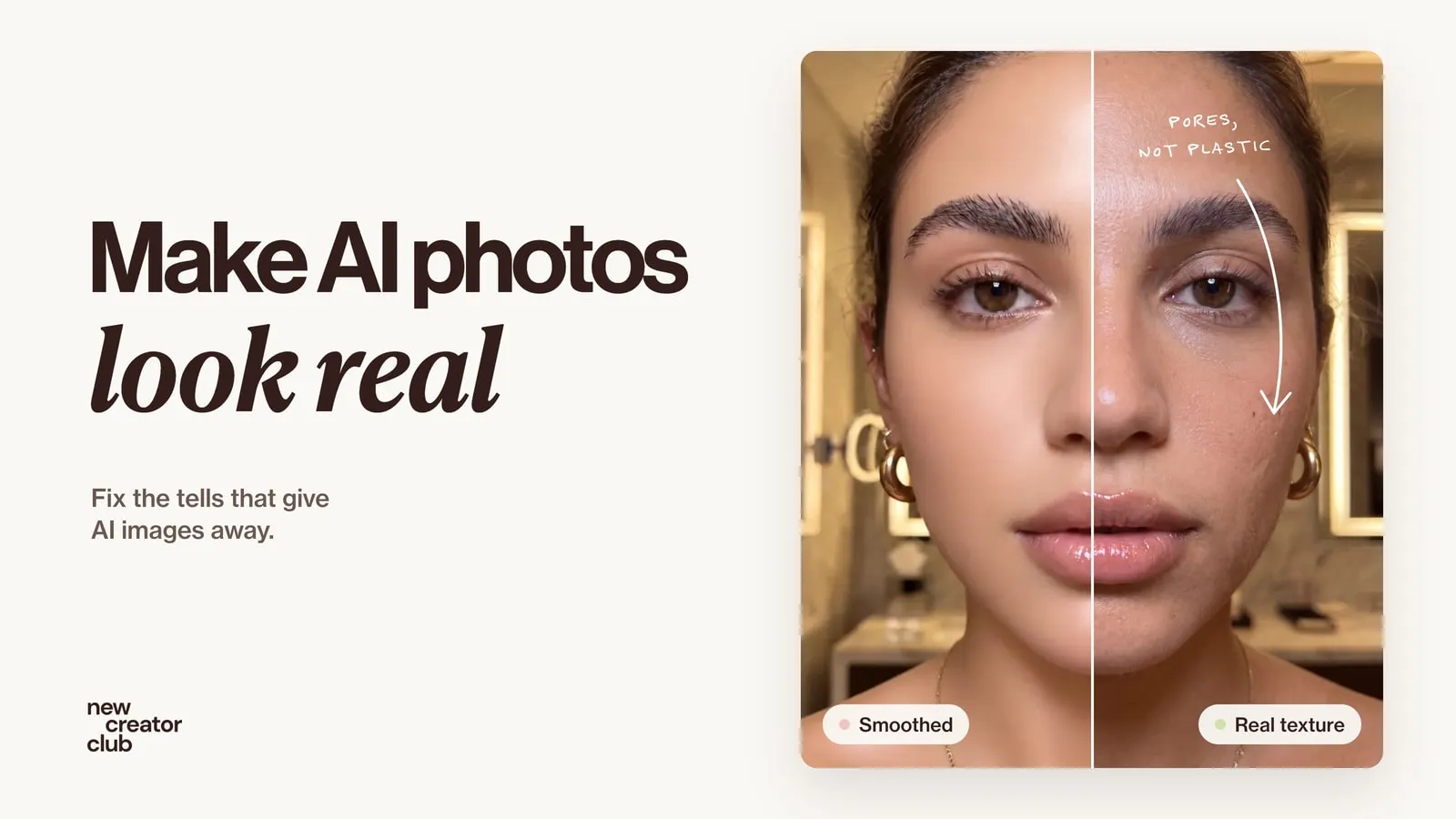
How to make AI photos look real
How to make AI photos look real: why they look fake, and the exact prompt change that fixes each tell, from plastic skin to impossible light.
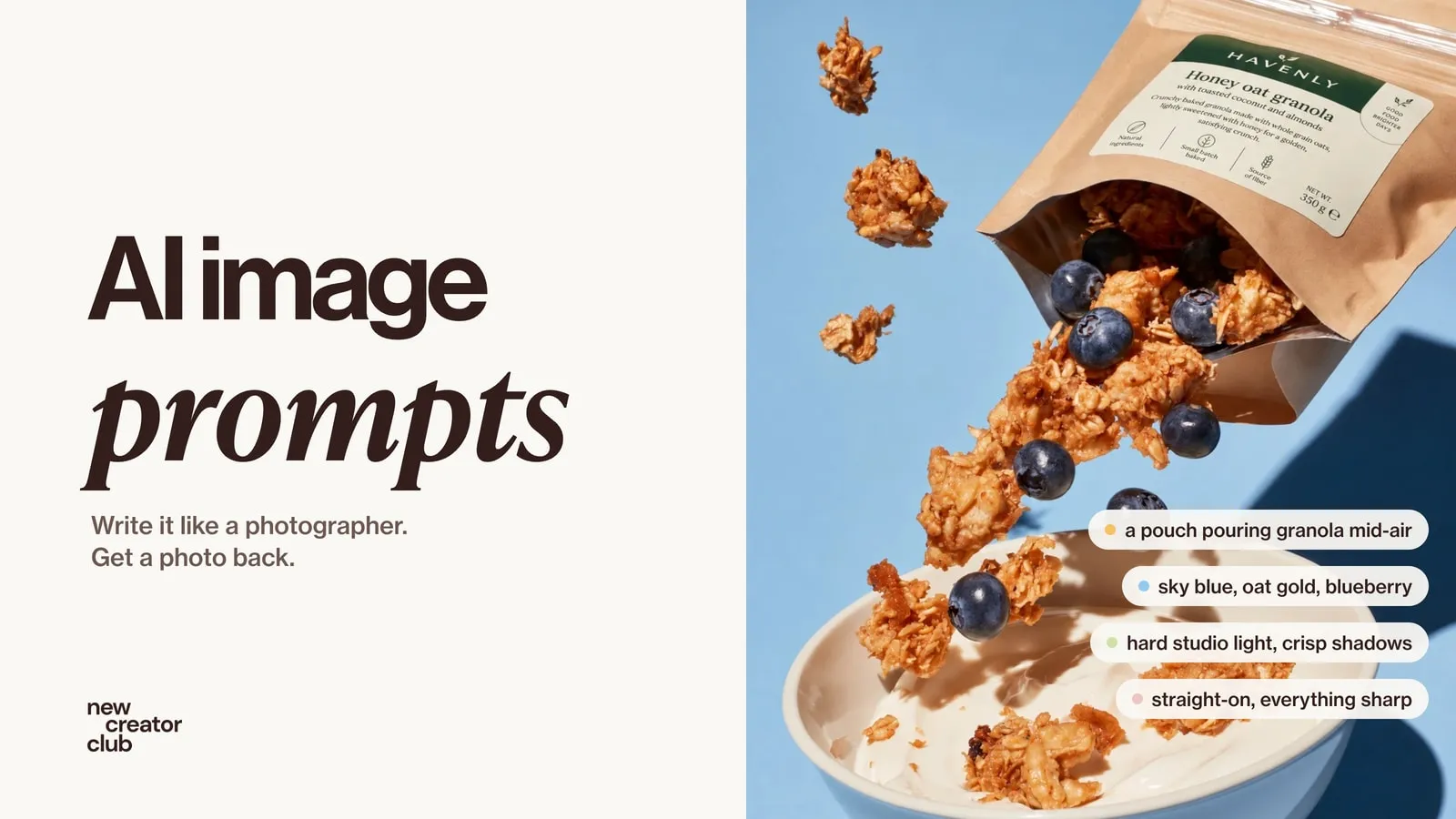
AI image prompts that look like real photos
Write AI image prompts that read like real photographs: an eight-part formula, with original prompts for portraits, products, UGC and editorial.

Higgsfield prompts that look like a real campaign
Higgsfield prompts for a whole campaign: the full prompts behind a pearl jewellery shoot made in Soul 2.0, how they are built and fixes when it looks AI.